Table of contents
- Quick summary
- Wix splits these four signals across three different surfaces
- Set the title tag and meta description from SEO basics
- Add JSON-LD from the Advanced SEO tab, or let SEO Settings cover the page type
- The h1 is a text element, not a setting, and a blank line breaks it
- Check the published domain, not the `wixsite.com` preview
- Where AIScan fits, and where it doesn't
- Fix the split, then scan it
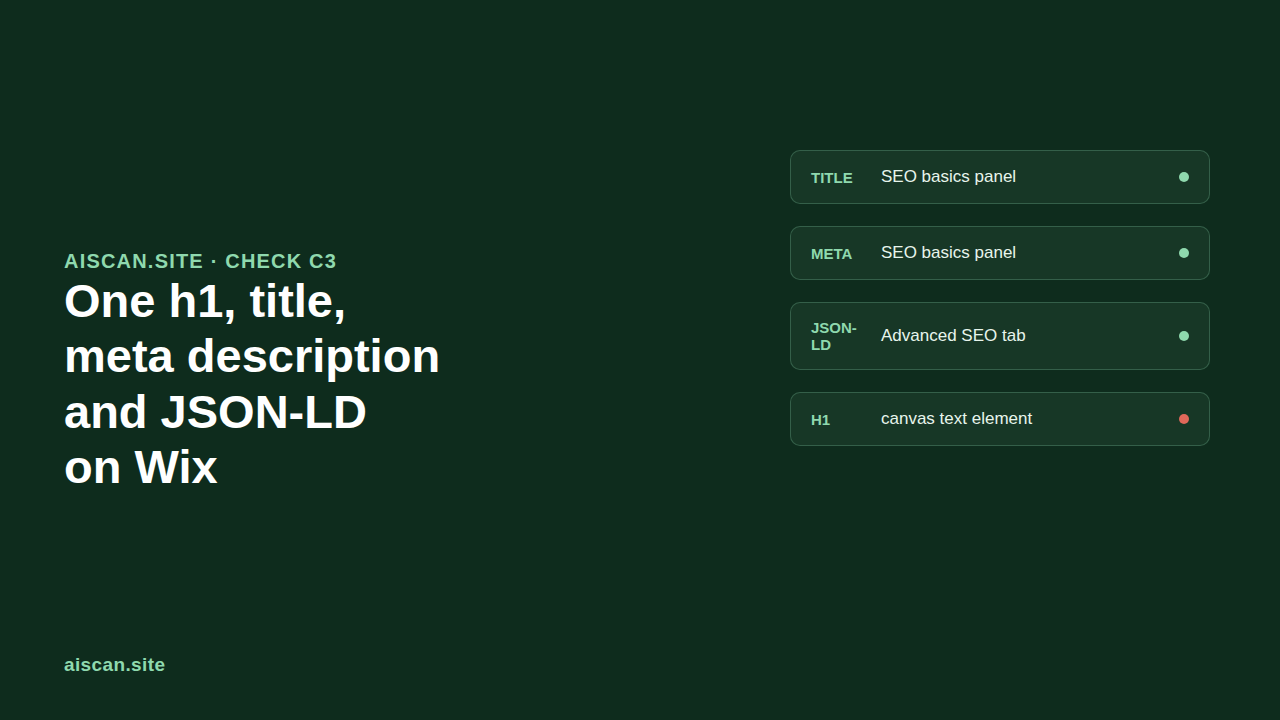
Ask AIScan's check C3 to grade a Wix page and it looks for four specific things in the raw HTML: exactly one <h1> tag, a <title>, a name="description" meta tag, and at least one application/ld+json script. Wix ships real settings for three of those, but not in one place, and not for the fourth at all.
Quick summary
| Signal | Where it lives on Wix | Fastest way to check |
|---|---|---|
| Title tag | Page's SEO basics panel | curl -s <url> | grep -o '<title>[^<]*' |
| Meta description | Same SEO basics panel, next field down | curl -s <url> | grep -o 'name="description"[^>]*' |
| JSON-LD | Advanced SEO tab on that same panel, or the SEO Settings dashboard | curl -s <url> | grep -c 'application/ld+json' |
| H1 | Not a setting: a Heading 1 text element on the canvas | curl -s <url> | grep -o '<h1[^>]*>' |
Wix splits these four signals across three different surfaces
Title tag and meta description sit in the same panel. Structured data is one tab over, in the same panel, but with its own character limit and its own dashboard-level alternative for page types. The h1 isn't in that panel at all. It's a text element you place on the page, styled like any other piece of text, which is exactly why it's the signal that goes missing. According to AIScan's own corpus of scanned sites, C3 is one of the checks where "the panel has a field for it" and "the page actually ships it" diverge most often, and a visual builder like Wix is the clearest case: nothing in the editor stops you from deleting the one Heading 1 element a template shipped with, or from styling a <div> to look identical to it while leaving the real heading tag unused.
Set the title tag and meta description from SEO basics
Go to your editor, click Pages & Menu, click More Actions next to the page you're editing, and click SEO basics. Enter your headline under Title tag (title in search results) and your summary under Meta description (description in search results), then click Publish.
According to Wix's help center article on title tags and meta descriptions, verified 25 September 2026, a title tag should stay under 60 characters (longer ones get trimmed in search results), and a meta description should run 50 to 160 characters. Wix's own guidance recommends the format Keyword | Location | Brand Name for local businesses and Keyword | Brand Name otherwise, and it states plainly that AI bots rely on an accurate meta description when summarizing a page, which is the same reason C3 checks for one at all: a missing description doesn't just cost a search snippet, it costs the one-sentence summary an agent would otherwise quote back.
| Field | Wix's own limit | What happens over the limit |
|---|---|---|
| Title tag | Under 60 characters | Search engines trim the display, C3 still passes on presence alone |
| Meta description | 50–160 characters | Google truncates around 160; under 50 reads as thin to a searcher |
| JSON-LD markup | Under 7,000 characters, up to 5 per page | Wix's Apply button rejects an oversized or malformed block |
Add JSON-LD from the Advanced SEO tab, or let SEO Settings cover the page type
From that same SEO basics panel, click the Advanced SEO tab, then Structured Data Markup, then +Add New Markup. Paste your JSON-LD under Write your markup in JSON-LD format and click Apply.
Verified on Wix's structured data article: Wix accepts JSON-LD only (no Microdata, no RDFa), caps each markup at under 7,000 characters, and allows up to five markups per page. Get a type wrong (blogposting instead of BlogPosting) and it won't validate.
There are two routes, and they don't cover the same ground:
| Route | Where you open it | Scope | Best for |
|---|---|---|---|
| Advanced SEO tab | Per page, in the editor | That one page only | A one-off page, like an About page or a landing page |
| SEO Settings dashboard | Site dashboard → SEO & GEO → Tools and settings | Every page of one page type, with variables for dynamic fields | Blog posts, Stores products, Bookings services, anything templated |
Fetched from Wix's structured data article: Wix auto-adds Local Business markup to your homepage once you've entered a business name and location, and it presets markup on Stores product pages, Bookings service pages, Blog posts and Events pages the moment you create them. Blog posts have a third option: an AI-generated markup toggle in SEO Settings that scans a published post and writes schema for it automatically, refreshed as the post changes. That toggle only covers the Wix Blog; every other page type still needs the manual route above.
The h1 is a text element, not a setting, and a blank line breaks it
To add one: click Add Elements, click Text, click Add Heading 1, and drag it onto the page. To reassign an existing line of text without changing how it looks, select it, click Edit Text, click SEO & accessibility, and choose a new tag from the Choose HTML tag drop-down. You can turn an H1 into an H4 and keep the same font and size.
According to Wix's own article on managing heading tags, fetched 25 September 2026, there's a specific failure mode worth knowing before you go looking for it: assigning Heading 1 to a text box that contains a blank line break generates an empty <h1> tag. AIScan's C3 check reads the tag itself, not whether it's empty, so a blank H1 still counts as a present one to a naive check. A human reading the rendered page sees nothing where the headline should be, which is the gap between "the tag exists" and "the signal does its job." And because Heading 1 is just a style choice on a text element, nothing in the editor stops you from applying it twice on the same page; most Wix themes ship with one, but a second Heading 1 dropped in by hand renders as a second <h1> and splits the one ranking signal a page is supposed to carry.
Check the published domain, not the wixsite.com preview
Check with AIScan first — it names this exact check:
npx aiscan-cli yoursite.com
# look for check C3 in the output: pass/fail plus the specific signal missing
Or by hand, against the live domain rather than a *.wixsite.com preview:
curl -s https://yoursite.com | grep -Eo '<title>[^<]*|name="description"[^>]*|application/ld\+json|<h1[^>]*>'
Expect a <title> value, one name="description" tag, at least one application/ld+json script tag, and exactly one <h1. Republishing after an edit updates the served HTML immediately, so a fresh curl reflects it right away, even though Google's own cached snippet can lag behind until its next crawl.
Where AIScan fits, and where it doesn't
C3 is a presence check: it confirms the tag exists once and the JSON-LD parses as a script block. It cannot tell you whether your JSON-LD's @type matches what Google's Rich Results Test wants, whether your title actually describes the page, or whether the "one" <h1> it counted is the empty one from a stray line break. Run the scan to catch a signal that's missing outright; read the page yourself to catch one that's present but wrong.
Fix the split, then scan it
Set the title and meta description in SEO basics, add JSON-LD from the Advanced SEO tab or SEO Settings, and give the page exactly one real Heading 1. Then run npx aiscan-cli yoursite.com and check row C3. For the file-based half of AI readiness, llms.txt and robots.txt, see the Wix llms.txt guide and the Wix robots.txt guide; for how a different visual builder handles the same four signals, see the Webflow version of this check. More fixes, one per check, live at AIScan's guides.
Frequently asked questions
AIScan reports h1: 0 on my Wix page, but I can see a headline. What's wrong?
Two likely causes. First, the text is styled to look like a big headline but was never assigned the Heading 1 tag; select it, click Edit Text, then SEO & accessibility, and check the Choose HTML tag value. Second, the Heading 1 text box contains a blank line break, which Wix renders as an empty heading element that a naive check counts as present but a real reader sees as nothing.
Can a Wix page have two H1 elements?
Yes, and nothing in the editor stops it. Heading 1 is a style choice you apply to any text element, so dragging a second Heading 1 onto a page that already has one produces two top-level heading elements in the rendered page, which splits the one heading signal a page should carry.
I edited the title tag and meta description in SEO basics but a fresh scan still shows the old ones. Why?
Check that you clicked Publish, not just closed the panel, and that you're scanning the live domain rather than a *.wixsite.com preview or an unpublished draft. The served HTML updates immediately after Publish; only Google's own cached search snippet can lag behind.
My JSON-LD markup won't save in the Advanced SEO tab. What's failing?
Wix enforces a hard 7,000-character cap per markup and accepts JSON-LD only, not Microdata or RDFa. A common silent failure is a wrong type string, like blogposting instead of BlogPosting; JSON-LD type names are case-sensitive.
Does adding structured data through SEO Settings work for a whole collection of dynamic pages, like blog posts or products?
Yes, that's what SEO Settings is for. Go to the page type's Customize Defaults tab and you can write markup once with variables that fill in per item. The per-page Advanced SEO tab, by contrast, only applies to the one specific page you opened it from.
Does Wix's AI-generated structured data cover my whole site?
No, only published Wix Blog posts. Every other page type, including Stores, Bookings and Events pages that ship with preset markup, and any custom page, needs the manual JSON-LD route in the Advanced SEO tab or SEO Settings.
Does check C3 care whether my title tag follows Wix's recommended Keyword | Brand format?
No. C3 checks presence, not phrasing: whether a title tag value exists at all. Wix's format guidance is good practice for how the title performs in search results, but it isn't part of what AIScan grades.
My homepage already has Local Business JSON-LD that Wix added automatically. Does that satisfy check C3 on other pages?
No. JSON-LD is checked per page, and Wix's automatic Local Business markup only ships on the homepage once you've added a business name and location. Every other page needs its own markup, either preset by its page type or added manually.
Related guides
What a Shopping Agent Can Read About Your Prices: 282 Sites Measured
An agent asked to compare three tools by price has two ways to answer. It can read a structured field, or it can read your marketing prose and guess. The howto on pricing…
How to ship one h1, title, meta description and JSON-LD on Replit
| Question | Answer | ||| | Where does Replit check this? | The SEO Rating card in the Growth pane, calculated after every publish | | Does that rating cover all four C3 signals? | No. Title, meta…
How to ship one h1, title, meta description and JSON-LD on Lovable
| C3 signal | Where it lives on Lovable | How you fix it | |||| | Title + meta description | Generated per page while Lovable builds your app | Ask in the project chat, there is no settings field | |…
How to ship one h1, title, meta description and JSON-LD on Ghost
| Signal | Who owns it on Ghost | Where you set it | |||| | <h1 | The theme, from your post's literal title | Nothing to set. It's the title field itself | | <title tag | The {{metatitle}} helper |…